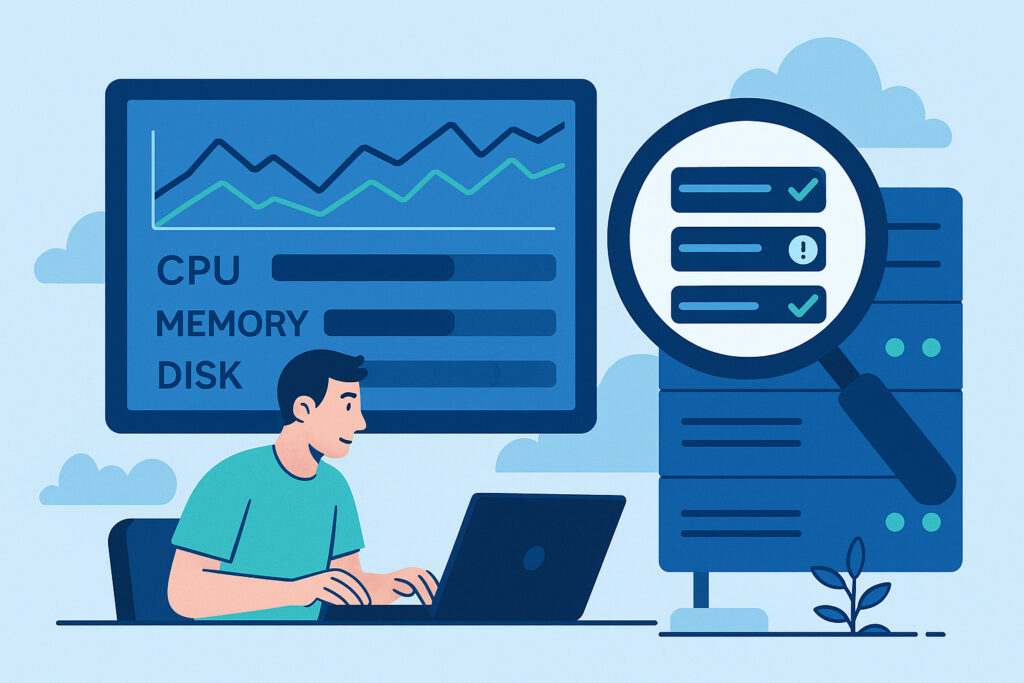
You know that feeling when your server suddenly slows to a crawl, and you have no idea which process is hogging all the resources? I’ve been there more times than I’d like to admit. Process monitoring isn’t just about keeping tabs on what’s running – it’s about maintaining control over your infrastructure before small issues become catastrophic failures.
Why Process Monitoring Matters More Than You Think
Most server administrators focus on basic uptime monitoring, but that’s like checking if your car’s engine is running without ever looking under the hood. A server can be ”up” while zombie processes consume memory, rogue scripts max out CPU cores, or critical services silently fail in the background.
I learned this the hard way when a client’s database server was technically online but performing terribly. After digging in, I found 47 abandoned MySQL connections eating up resources. The server hadn’t crashed, so traditional monitoring tools gave us a green light while users experienced timeouts. That’s when I realized: knowing what processes are running is just as important as knowing if the server is running.
What Actually Happens on Your Servers
Every application, service, and script running on your server is a process. Your web server, database, backup scripts, cron jobs – they’re all processes competing for CPU, memory, and disk I/O. Without proper monitoring, you’re essentially driving blindfolded.
Common issues that process monitoring catches:
Memory leaks that gradually consume all available RAM. A PHP process that should take seconds but hangs for hours. Services that crash and don’t restart properly. Background jobs that multiply instead of completing. Unauthorized processes that shouldn’t be there at all.
The last point is particularly critical. I once discovered a cryptocurrency miner running on a production server because process monitoring showed an unfamiliar process consuming 100% CPU. Without that visibility, it might have run for months.
Setting Up Effective Process Monitoring
You don’t need enterprise-grade solutions to start monitoring processes effectively. Here’s how to approach it systematically:
Start with the basics. Install a lightweight monitoring agent that can track process metrics without adding significant overhead. You want something that runs continuously but doesn’t become part of the problem by consuming too many resources itself.
Define what normal looks like. Spend a few days observing typical process behavior. How much memory does your web server usually consume? How many worker processes run during peak hours? Establish baselines so you can spot anomalies.
Set intelligent thresholds. Don’t just alert on everything – that’s a fast track to alert fatigue. Focus on processes that matter. If your Apache process suddenly spawns 500 workers instead of the usual 50, that’s worth knowing immediately.
Key Metrics to Track
Not all process metrics are equally important. Here’s what actually matters in practice:
CPU usage per process helps identify runaway processes before they impact other services. A single process shouldn’t monopolize your CPU unless it’s supposed to.
Memory consumption shows memory leaks and helps with capacity planning. If your application uses 10% more memory each day, you’ll run out eventually.
Process count for critical services reveals crashes and automatic restart failures. Your database should always show exactly one master process, not zero or three.
Process age can indicate stale connections or stuck jobs. If a backup script normally completes in 20 minutes but has been running for 6 hours, something’s wrong.
Real-World Monitoring Strategies
Theory is great, but here’s what works in actual production environments. I monitor all critical services explicitly – web servers, databases, mail servers, and any custom applications. Each gets specific thresholds based on normal behavior.
For web servers, I watch for worker process counts exceeding safe limits. For databases, I track connection counts and long-running queries as separate processes. For background jobs, I monitor both execution time and resource consumption.
Set up alerts that give you context. Instead of just ”high CPU usage,” I want to know ”process php-fpm consuming 95% CPU for 5 minutes.” That tells me exactly where to look.
Common Myths About Process Monitoring
Myth: Top command is enough. Running top manually is reactive, not proactive. You need automated monitoring that alerts you before you even know to check.
Myth: Only big servers need it. Small servers fail too, often more dramatically because they have less resource buffer. A single runaway process can kill a small VPS instantly.
Myth: It’s too complicated. Modern monitoring tools make this straightforward. Install an agent, configure what to watch, and you’re done.
What to Do When Processes Misbehave
When you spot a problematic process, don’t just kill it blindly. First, identify what it is and why it’s running. Check the process owner, parent process, and command line arguments. Sometimes what looks like a rogue process is actually critical to operations.
For stuck processes, try graceful termination first. Send a TERM signal and give it time to clean up. If that fails, then resort to KILL. For services that should restart, verify they actually do. I’ve seen processes that crash and leave behind PID files that prevent proper restarts.
Frequently Asked Questions
How often should process monitoring check? Every 30-60 seconds is usually sufficient. More frequent checks add overhead without much benefit unless you’re troubleshooting specific issues.
What if monitoring itself causes problems? Choose lightweight agents designed for minimal impact. They should use less than 1-2% of system resources under normal conditions.
Can I monitor processes without installing agents? Yes, through external API checks or SNMP, but you get less detailed information. For comprehensive process monitoring, agents provide the best visibility.
The bottom line is simple: you can’t manage what you can’t see. Process monitoring gives you that visibility, turning your servers from black boxes into transparent, manageable systems. Whether you’re running a single VPS or a complex infrastructure, knowing exactly what’s running and how it’s behaving is essential for maintaining reliable services.