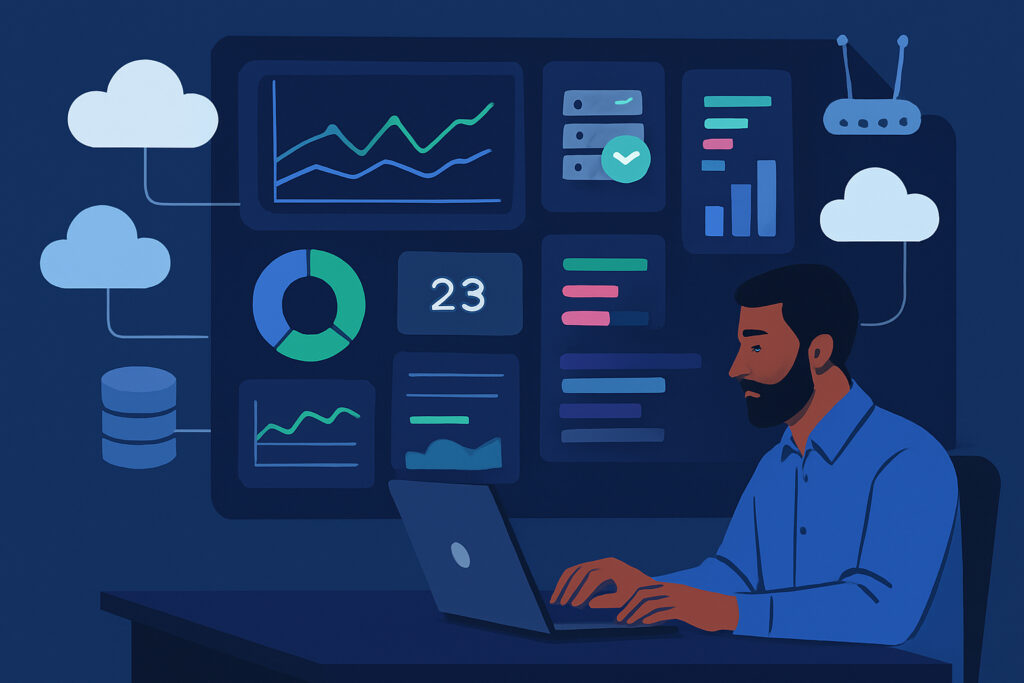
If you manage more than a handful of servers, you already know the feeling. You open your monitoring tool, and there it is — a wall of metrics. CPU graphs, memory charts, disk usage bars, network throughput lines, all fighting for your attention. Everything looks fine, technically. But you have no idea what actually matters right now, because the dashboard was built for everyone and no one at the same time.
That is the real problem with default monitoring views. They show you data, but they do not show you your data in a way that matches how you actually think about your infrastructure.
Custom dashboards fix this. They let you build views that reflect your specific environment, your priorities, and the way your team works. And once you start using them properly, you will wonder how you ever managed without them.
Why Default Dashboards Fall Short
Most monitoring platforms ship with generic dashboards. They are fine for a single server or a small setup. But the moment your environment grows — maybe you have a mix of web servers, database clusters, load balancers, and a few legacy machines nobody wants to touch — those default views become noise.
The web team cares about response times and HTTP error rates. The database admin wants to see query latency and connection pool usage. The operations manager needs a high-level overview of SLA compliance across all services. Forcing everyone to dig through the same generic dashboard wastes time and, worse, means people miss things that matter.
I learned this the hard way a couple of years ago when we had a staging database slowly eating up disk space. The metric was right there on the default dashboard, buried between CPU and memory graphs that nobody was paying attention to because they looked normal. By the time someone noticed, we were at 97% disk usage and the database had started rejecting writes. A custom dashboard with disk space front and center for database hosts would have caught it in seconds.
What Makes a Good Custom Dashboard
A good custom dashboard is not about cramming more data onto one screen. It is about choosing the right data for the right audience and presenting it in a way that makes decisions easy.
Start by asking yourself three questions. Who is going to look at this dashboard? What decisions do they need to make? And what is the first thing they should see when something goes wrong?
For an operations team, the answer is usually service health and uptime. Green means everything is fine, red means something needs attention. They do not need to see individual CPU cores — they need to know which services are degraded.
For a DevOps engineer troubleshooting a performance issue, the dashboard should show correlated metrics. CPU, memory, and network side by side for a specific host or service group, so they can spot patterns without jumping between screens.
For management, the dashboard might be a weekly SLA summary. Uptime percentages, incident counts, and trend lines over time. Simple, clean, and focused on business outcomes rather than technical details.
Building Your First Custom Dashboard Step by Step
If you have never built a custom dashboard before, here is a practical approach that works well regardless of which platform you use.
Step 1: Identify your service groups. Break your infrastructure into logical groups. Web servers, application servers, databases, caches, load balancers, network devices. This gives you the foundation for organizing your views.
Step 2: Pick three to five key metrics per group. Resist the temptation to add everything. For web servers, you probably want request rate, error rate, response time, CPU, and memory. For databases, think about query latency, active connections, replication lag, and disk I/O. Less is more at this stage.
Step 3: Set meaningful thresholds. A CPU graph is just a line unless you define what “too high” means. Set warning and critical thresholds based on your actual baselines, not arbitrary numbers. If your application server normally runs at 60% CPU, a warning at 80% makes sense. Setting it at 50% just creates alert fatigue.
Step 4: Build role-based views. Create separate dashboards for different teams or use cases. An NOC overview dashboard should look completely different from a database performance deep-dive dashboard.
Step 5: Iterate. Your first version will not be perfect. Use it for a week, then ask yourself what you looked at, what you ignored, and what was missing. Adjust accordingly.
Practical Tips From Real Environments
One thing that has saved me a lot of headaches is building a dedicated “deployment” dashboard. It shows the same core metrics — CPU, memory, error rates — but scoped to the last two hours with a higher refresh rate. During deployments, the team pulls it up on a shared screen and watches for anything unusual. It has caught regressions more than once before they reached end users.
Another tip is to use dashboard variables or filters. If your platform supports them, you can build one dashboard template and let users switch between server groups or time ranges without creating dozens of separate views. This keeps things maintainable as your infrastructure grows.
For environments with SNMP devices like switches, firewalls, and access points, it helps to have a separate network dashboard that shows interface utilization, error counts, and device availability. Mixing network device metrics with server metrics usually creates confusion rather than clarity.
Common Myths About Custom Dashboards
There is a misconception that custom dashboards require a lot of ongoing maintenance. In practice, if you build them around service groups rather than individual hosts, they stay relevant even as you add or remove servers. The structure stays the same — only the hosts within each group change.
Another myth is that you need expensive enterprise tools to get good custom dashboards. That is simply not true anymore. Platforms like NetworkVigil let you build tailored views with agent-based metrics, external monitoring, and SNMP data all in one place, without complex licensing. The free tier already covers the core metrics most teams need, and premium features like cloud integrations and advanced dashboard customization are there when you outgrow the basics.
Frequently Asked Questions
How many dashboards should I create? Start with three: a high-level overview for quick status checks, a service-specific view for your most critical application, and an infrastructure dashboard for the ops team. Add more only when there is a clear need.
Should every team member see the same dashboard? No. Different roles need different views. Giving everyone the same dashboard is exactly the problem custom dashboards solve.
How often should I update my dashboards? Review them after any major infrastructure change — new services, migrations, or significant architecture shifts. Otherwise, a quarterly review is usually enough.
What if I have hundreds of servers? Use grouping and filtering aggressively. Nobody can meaningfully monitor 200 individual host dashboards. Group by function, location, or service, and drill down only when something needs investigation.
Final Thoughts
Custom dashboards are not a luxury feature. They are a practical necessity once your environment reaches any level of complexity. The time you invest in building them pays back every single day in faster incident response, fewer missed issues, and less mental overhead for your team.
Start small, focus on what matters to the people who will actually use them, and improve over time. Your future self — the one getting paged at 2 AM — will thank you for it.